Introduction
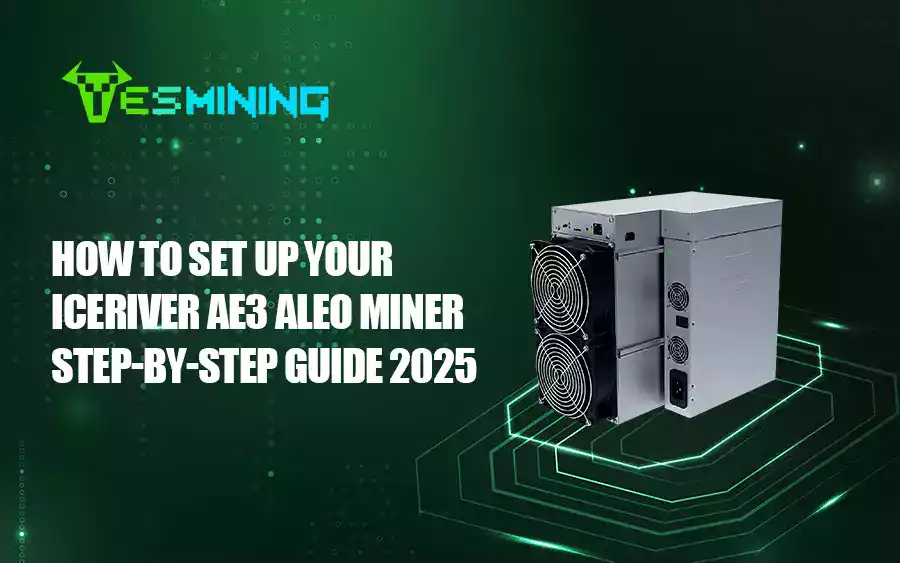
The IceRiver AE3 ALEO Miner is one of the latest and most powerful ASIC miners designed for the Aleo blockchain. Known for its high performance and energy efficiency, the AE3 offers a strong balance between hashrate and power consumption. Whether you are a beginner or an experienced miner, this step-by-step guide will walk you through how to set up, configure, and start mining Aleo efficiently.
What Is the IceRiver AE3 ALEO Miner?
The IceRiver AE3 is part of the IceRiver Aleo series, built specifically for the Aleo blockchain’s Proof-of-Succinct-Work algorithm. It delivers a hashrate of around 6 GH/s with power consumption of approximately 3400W, making it a highly efficient mining solution for professionals and enthusiasts alike.
What You’ll Need Before Setup
Before starting your setup process, ensure you have the following ready:
• Stable power supply (rated for at least 3400W)
• Ethernet cable and internet connection
• Access to your router or local network
• A desktop or laptop for configuration
• Mining pool account and Aleo wallet address
Step-by-Step Setup Guide
Step 1: Unboxing and Inspection
Unbox your IceRiver AE3 carefully. Check for any shipping damage and ensure all fans, ports, and connectors are secure before powering on the device.
Step 2: Connect Power and Network
Connect the PSU cables to your AE3 and plug in the Ethernet cable to a stable wired network. Avoid using Wi-Fi connections for mining.
Step 3: Find the Miner’s IP Address
Once powered on, locate the miner’s IP using your router’s DHCP list or tools like “Advanced IP Scanner.”
Step 4: Log In to the Miner Interface
Enter the miner’s IP into your browser to open the admin dashboard. Default login credentials are typically:
Step 5: Configure Mining Settings
Go to “Miner Configuration” and fill in your pool and wallet details as shown below:
| Field | Example |
|---|
| Pool URL | stratum+tcp://aleo.pool.example.com:3333 |
| Worker Name | your_wallet_address.worker1 |
| Password | x |
Step 6: Save and Reboot
Click “Save & Apply” to confirm your settings. The miner will restart and automatically connect to your pool to start mining.
Connecting to the Mining Pool
After the reboot, check the “Miner Status” page. You should see the pool connection, accepted shares, and hashrate. If it shows “disconnected,” double-check your pool URL and wallet information.
To find recommended Aleo mining pools, you can explore the updated community list on MiningPoolStats.
Monitoring and Troubleshooting
• Keep the miner temperature below 80°C for stability.
• Ensure proper airflow — avoid closed or hot environments.
• Keep your firmware updated from the official IceRiver website.
• If the hashrate drops, reboot and verify network connections.
Performance Optimization Tips
• Use surge-protected power sources.
• Maintain ambient temperature between 20–30°C.
• Clean fans and dust filters regularly.
• Use low-latency mining pools for better efficiency.
Final Thoughts
The IceRiver AE3 ALEO Miner is a high-performance ASIC built for long-term, efficient Aleo mining. Proper setup, good ventilation, and routine maintenance will help you achieve optimal mining performance and stability.
Ready to start mining? Visit the official IceRiver AE3 product page for detailed specifications and purchase options.

 English
  Russian
  Spanish
  French
  German