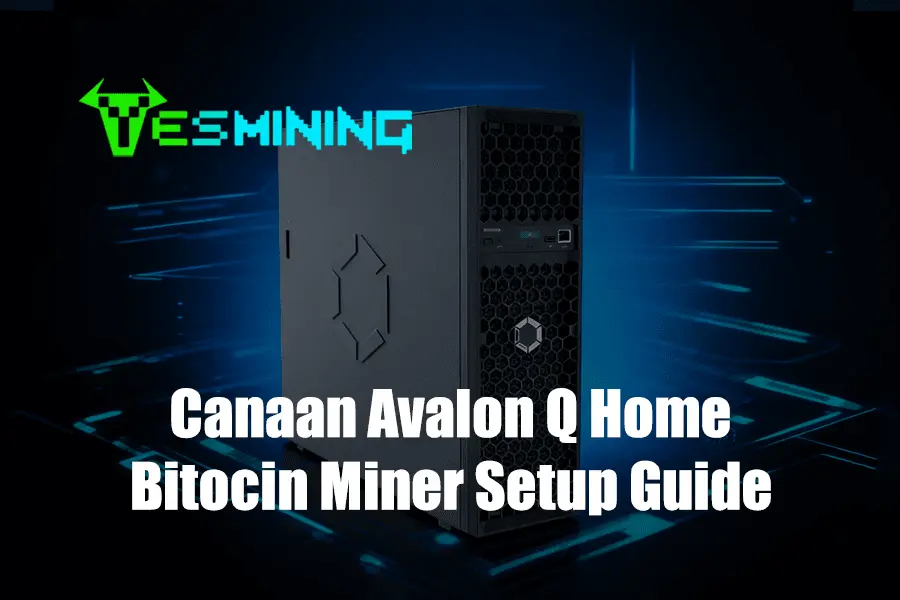
The Canaan Avalon Q is a powerful yet beginner-friendly Bitcoin miner designed for home use. Whether you’re new to mining or looking to expand your setup, this guide will walk you step-by-step through unboxing, connecting, and configuring your Avalon Q, using the Avalon Family App for easy monitoring and control. You’ll be up and running in no time.
Key Takeaways
Beginner-Friendly: The Avalon Q is designed for easy home mining, making it ideal for newcomers.
Setup Preparedness: Always check all items in the box and place the miner in a well-ventilated area to prevent overheating.
App Control & Monitoring: The Avalon Family App provides real-time monitoring of hashrate, temperature, and operational status.
Canaan Avalon Q Overview
The Canaan Avalon Q is a compact, home-friendly Bitcoin miner delivering a powerful 90 TH/s hash rate while consuming 1674W of power. Designed for convenience, it works with standard home outlets, allowing most users to start mining without specialized electrical setups.
With adjustable power modes, users can optimize performance for either maximum speed or energy efficiency, and the Avalon Q Quick Start Guide ensures a smooth setup process for beginners.
Key Features
The avalon lets you change how much power it uses. At its best, it uses about 800W and gives 30 TH/s.
The avalon has an energy efficiency of 18.6 J/TH. This is as good as some big miners.
The avalon is not very loud. It makes between 45 and 65 dB of noise. This is about as quiet as a library.
The avalon works well in temperatures from -5°C to 35°C. This is good for home offices.
The canaan avalon q can last 3 to 5 years if you take care of it.
Why Choose Canaan
The Canaan Avalon Q represents the next evolution of Canaan’s trusted Avalon lineup — a Wi-Fi enabled, SHA-256 Bitcoin miner designed for quiet, efficient, and effortless home mining. Known for its industry-leading build quality and plug-and-play setup, the Avalon Q brings professional-grade mining performance into a compact, home-friendly form.
With support for both solo and pool mining, and three smart power modes — Eco, Standard, and Super — it gives users full control over performance and energy efficiency. You can have it running in under 10 minutes via the Avalon Family mobile app, no computer required.
Unboxing the Avalon Q Bitcoin Miner
Included Accessories
When your Canaan Avalon Q Bitcoin Miner arrives, you’ll find it securely packaged to protect all components during transit. The device is well-cushioned with double-layer foam and reinforced corners, ensuring it arrives in perfect condition.
Inside the box, you’ll find everything needed to start mining right away:
Avalon Q Bitcoin Miner — a compact, efficient ASIC miner designed by Canaan, ideal for home or small-scale setups.
Power Cable — ready to plug into a standard home outlet.
Wi-Fi Adapter — allows easy wireless connectivity if an Ethernet port isn’t available.
User Manual — provides clear setup and safety guidance.
💡 Pro Tip: Keep the original packaging until your Avalon Q is fully set up and running. It’s useful for transport or warranty service in the future.
Before powering on, double-check that all accessories are included. If anything appears missing or damaged, contact Yesmining support for assistance before proceeding with setup.
Setting Up Your Avalon Q: Location, Safety & Physical Connection
Location Tips
Place your Canaan Avalon Q on a flat, stable surface with good airflow—near a fan or open window is ideal. Keep it away from direct sunlight, dust, and moisture to protect the device and ensure long-term reliability. If you plan to run multiple Avalon Q units, a Power Distribution Unit can help manage electricity safely. Some users even pair the miner with solar or battery systems to save energy while staying eco-friendly.
Physical Connection & Network Setup
After choosing the location, connect the miner safely. Start with the included power cable—inspect it for damage, plug it securely into the back of the Avalon Q, then into your wall outlet. Loose connections can disrupt mining, so ensure everything is tight. Next, choose your network: Ethernet is recommended for a stable, high-speed link, but if that’s not possible, use the included Wi-Fi adapter in the miner’s USB port. Double-check all connections before powering on to ensure reliable operation.
If you encounter issues with power, network, or setup, you can reach out to:
Setting up your Avalon Q is simple with the Avalon Family App. Follow these steps to get your miner running quickly and safely.
1. Download the App
Find the Avalon Family App on the App Store or Google Play and install it.
Ensure your phone or tablet is on the same Wi-Fi network you’ll use for the miner.
ssistance.
2. Device Login
Open the app and create an Avalon account to unlock full features.
Tap Add Device or the “+” icon to detect nearby Avalon miners.
Select your Avalon Q from the list and enter the default password from the user manual.
3. Access the Dashboard
After logging in, the app displays the miner’s dashboard showing status, hashrate, temperature, fan speed, and network connection.
From here, you can adjust settings, monitor performance, and manage your mining pool.
Note: If the app does not detect your Avalon Q, double-check the network connection and ensure the miner is powered on.
4. Configure Mining Pool
In the app, go to Mining Pool Configuration.
Enter your pool URL, worker name, and password. This securely connects the miner to the pool.
If you have multiple miners, give each a unique worker name.
The app verifies the information and starts mining if all is correct.
5. Monitor and Adjust
Use the app to track real-time hashrate, temperature, fan speed, and pool status.
Adjust power modes, fan speeds, and network settings as needed to optimize performance.
Start Mining with Avalon Q Bitcoin Home Miner
Once your Avalon Q is connected and configured, you’re ready to start mining. Follow these steps to ensure smooth operation:
Power On
Make sure the Avalon Q is plugged into a power source and connected to the internet. Press the power button on the back of the miner. The LEDs will blink and the fan will start spinning. Wait for the avalon to finish starting. This can take a few minutes. When it is ready, it connects to the network. You can see its status in the Avalon Family App.
Tip: Always check that all cables are tight before you turn on the avalon q bitcoin home miner.
Monitor Performance
After you turn on the avalon, open the Avalon Family App. The app shows a dashboard with important details. You can see the hashrate, temperature, and fan speed:
Hashrate (around 90 TH/s under optimal conditions)
Device temperature
Fan speed
Network status
Mining pool connection
Check these settings often to keep the avalon working well. If the hashrate goes down or the temperature gets high, change the settings in the app. The avalon lets you change power modes, fan speed, and network settings.
Watching these numbers helps the avalon q bitcoin home miner do its best. If you see a problem, use the app to fix or reset the avalon.
Troubleshooting Common Issues
Even with a simple setup, sometimes the Avalon Q may encounter network or hardware issues. Here’s how to handle common problems efficiently:
1. Connection Problems
Issue: Miner not connecting to the app, mining pool, or internet.
Solutions:
Check all cables and ensure they are securely plugged in.
Confirm your network is working properly.
If the miner is still offline, perform a quick reset by pressing the reset button. Then re-enter your mining pool details.
Keep a backup mining pool ready in case the primary pool fails.
Common signs of connection issues:
Miner not showing in the app
Mining pool status not updating
Frequent network drops
Need More Help?Click herefor more helpful resources and support!
2. Hardware Errors
Issue: Missing hashing boards, low hashrate, fan problems, or unusual temperature readings.
Solutions:
Inspect all cables and ensure proper airflow around the miner.
Clean dust from vents and fans regularly.
If the hashrate drops, check temperature and network settings.
Fan malfunctions can be caused by dust or blockages. Clean carefully or replace if needed.
For persistent issues, perform a factory reset following the user manual.
3. Firmware & Software Issues
Always use official firmware updates. Third-party firmware can compromise miner performance and security.
If the app is not responding, restart both the miner and the app, then reconnect.
Tip: Regularly monitoring the Avalon Family App dashboard helps catch issues early, allowing quick fixes before they affect mining rewards.
Conclusion
The Canaan Avalon Q is an easy-to-use, high-performance Bitcoin miner perfect for home use. With the Avalon Family App, you can monitor hashrate, temperature, and fan speed, adjust settings, and manage mining pools—all from your phone or tablet. Regular maintenance and monitoring ensure your miner runs smoothly and efficiently.
Why Choose Yesmining?
Authenticity Guaranteed: Every Avalon Q sold is a genuine Canaan product.
Expert Assistance: From unboxing to advanced setup, Yesmining provides step-by-step support.
Reliable After-Sales Service: Quick responses to questions, troubleshooting, and repair guidance.
Yesmining’s team supports you throughout the entire process—from initial setup using the quick start guide to advanced configuration and maintenance. If any issues arise, their professional support ensures you get timely solutions. With Yesmining, you can mine Bitcoin at home with confidence and peace of mind.
FAQ
How loud is the Avalon Q? The Avalon Q runs quietly at 45–65 dB, similar to a calm office, and can be placed in a separate room to reduce noise further.
Can I mine other cryptocurrencies with it? No, the Avalon Q only supports Bitcoin using the SHA-256 algorithm.
What should I do if it overheats? Check airflow, clean dust from the vents, lower the power mode in the Avalon Family App, and contact Yesmining support if it continues.
What if my miner loses connection? Ensure all cables are securely connected, restart the miner, reconnect through the app, and use a backup pool if needed.
How do I get support? Contact Yesmining with your miner’s model, serial number, and any error messages for fast a

 English
  Russian
  Spanish
  French
  German