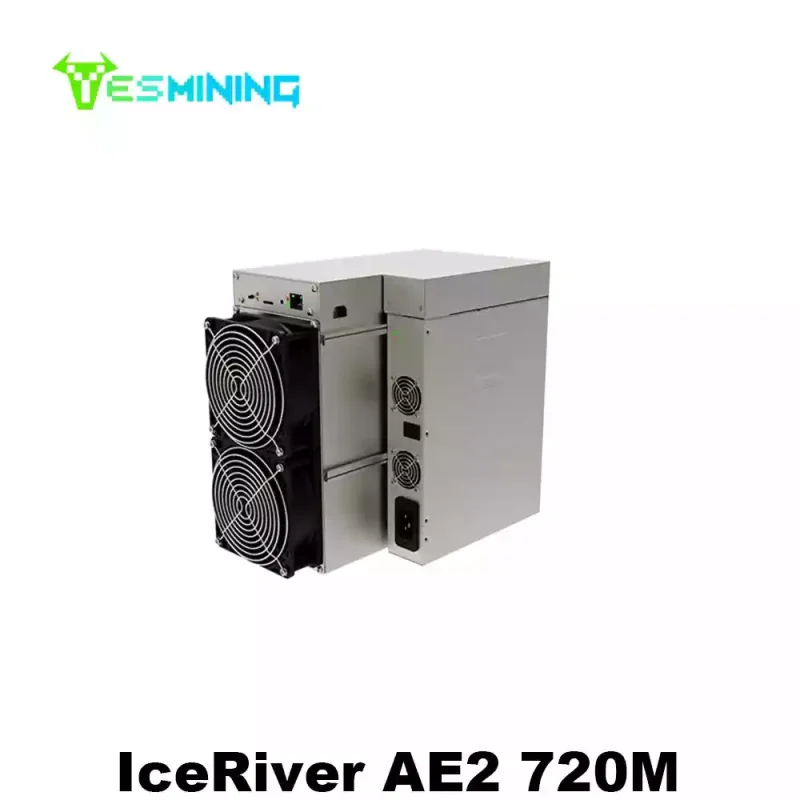
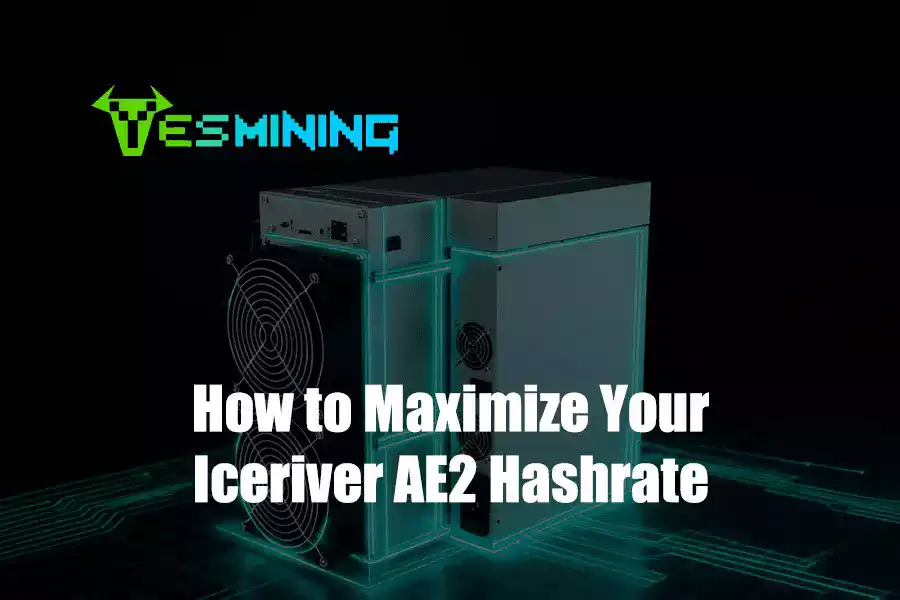
The IceRiver AE2 is a powerful and efficient Aleo miner designed for users seeking balanced performance and energy efficiency. This guide explains how to set up the AE2, from installation to mining pool configuration, and prepares you to start mining the Aleo network quickly and effectively.
What Is the IceRiver AE2?
The IceRiver AE2 is a mid-range Aleo ASIC miner optimized for PoSW mining. It offers strong hashrate output with low power consumption, making it suitable for both home miners and small operations. For complete hardware specs and power efficiency data, visit the
➡️ IceRiver AE2 720MH 1300W Product Page
Key Specifications
Preparation Before Setup
Before installing the AE2, ensure you have
- A stable power source,
- Wired Ethernet connection,
- Aleo wallet address,
- A mining pool account.
These components are necessary for smooth mining operations and optimal performance.
If you’re completely new to Aleo mining, the official documentation provides a great foundation — check out the Aleo Official Documentation.
Step-by-Step IceRiver AE2 Setup Guide
Unboxing and Physical Installation
Remove the miner from the packaging and place it in a cool, ventilated area. Ensure proper airflow to prevent overheating and dust buildup.
Connecting to Power and Network
Connect the power cable and plug the miner in. Attach an Ethernet cable from your router to the miner. Once powered, the device will automatically obtain an IP address from your network.
For stable PoSW mining communication standards, you can refer to the Stratum Mining Protocol Basics.
Accessing the Miner Dashboard
Locate the miner’s IP address through your router and enter it into your browser. Log in using the default credentials, commonly “root” for both username and password, unless otherwise stated in your manual.
Configuring the Aleo Mining Pool
Enter your mining pool URL, Aleo wallet address, and worker name into the configuration panel. You can save your settings, and the miner will restart and begin mining automatically.
Not sure which pool settings are correct? Many miners refer to the Aleo GitHub Repositories for network and protocol references.
Monitoring Performance
The dashboard displays your real-time hashrate, temperature, fan speed, and share statistics. Monitor these to ensure stable mining performance and early detection of abnormalities.
Mining Tips for Maximum Efficiency
Maintain good ventilation, ensure network stability, use high-quality power equipment, and monitor the dashboard regularly. These steps will optimize your miner’s performance and extend hardware lifespan.
Troubleshooting Common Issues
If the miner does not appear on the network, verify Ethernet connections and router settings. Low hashrate may result from overheating or incorrect pool settings. Frequent disconnections often relate to unstable power or network interruptions.
For more detailed diagnosis and common repair pitfalls, check out our guide on ASIC miner repair mistakes most users overlook
Conclusion
The IceRiver AE2 offers a reliable and efficient solution for Aleo miners. Its straightforward setup process and consistent performance make it ideal for anyone entering Aleo mining or scaling operations. Following this guide ensures you start mining quickly and confidently.

 English
  Russian
  Spanish
  French
  German