Introduction
If you’re ready to dive into full-scale Zcash (ZEC) mining with one of the most powerful ASICs available, this guide walks you through setting up the Antminer Z15 Pro from start to finish. Whether you’re a seasoned miner or new to ASICs, you’ll be guided step-by-step to get up and running quickly—and pointing you toward accessories and purchase links to make everything seamless.
We’ll cover why the Z15 Pro stands out, how to physically install and power it, how to configure it, how to join two leading mining pools (ViaBTC and F2Pool), and how to maintain smooth operation.
Why Choose the Antminer Z15 Pro (vs the Z15)
Let’s compare the two machines and explain why the Z15 Pro is a strong choice.
The Antminer Z15 is rated at around 420 kSol/s for Equihash (Zcash algorithm) with corresponding power consumption and efficiency.
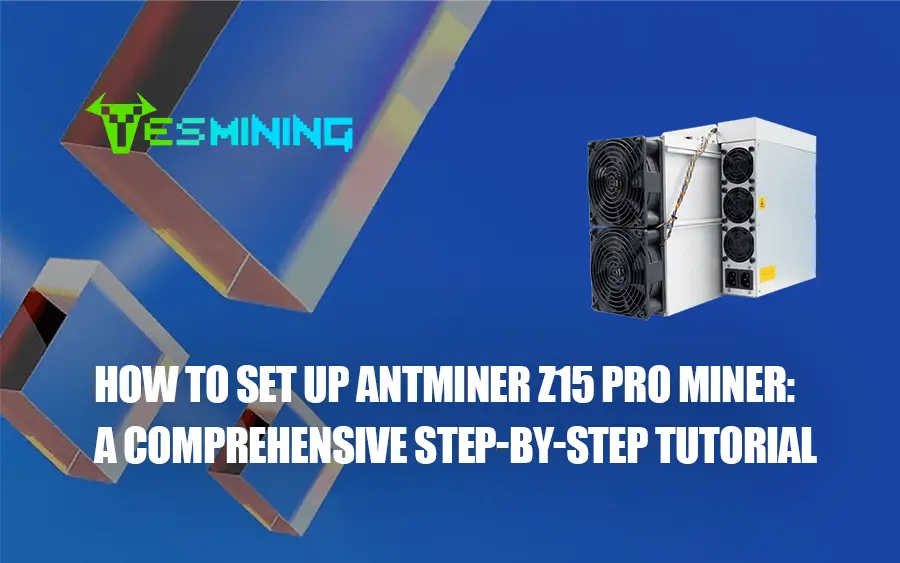
The Antminer Z15 Pro is rated at up to 840 kSol/s (approx double), and is engineered for higher throughput, while still maintaining good efficiency. According to the manual the Z15 Pro includes the power supply built-in (so you don’t need to source a separate PSU), and the “on-wall” power consumption is around 2,650 W at 25°C.
If you’re planning a serious mining setup aiming for best hashrate and strong energy efficiency, the Z15 Pro is very compelling.
Unboxing & Hardware Setup
When your machine arrives, treat it like a high-performance piece of equipment. Think of it like unpacking a race-car engine rather than a consumer gadget.
1. Carefully remove it from its packaging, position it on a flat, stable, level surface—remember this machine generates heat and vibration, so treat it like heavy equipment.
2. Ensure the room is well-ventilated, ambient temperature ideally below 35°C, humidity controlled. The manual states operating temperature range for Z15 Pro is 0–40°C and altitude must be ≤ 2,000 m.
3. Inspect power cables, Ethernet cable, the built-in PSU connections—since the Z15 Pro has its PSU integrated, you only need to plug into the AC mains and network. No external PSU required.
4. Grounding is important—connect to a properly earthed mains socket. The manual emphasises that the socket should be accessible near the device.
Network & Power Configuration
Now you’ll physically plug in the machine.
– Connect the AC power cables to the machine (as per manual). Because the Z15 Pro includes its power supply, you simply plug to 200-240 V AC mains.
– Connect the Ethernet cable from your network switch/router to the miner’s RJ45 port. Ensure your network allows DHCP or set a static IP later.
– Power on the machine. Wait for fans to spin up and the machine to initialize.
– Use tools (such as the “IP Reporter” utility provided for Bitmain machines) to locate the miner’s IP address on your network.
Accessing the Antminer Dashboard & Firmware Setup
Once the miner is powered and networked:
1. In your browser, type the miner’s IP address. Login with default credentials (often “root”/“root”), then immediately change the password to secure the unit.
2. Navigate to the dashboard (in Bitmain units called the “Dashboard” or sometimes “Status”). This is where you view hashrate, chip status, temperatures, fans, and more.
3. Verify firmware version; if needed, perform upgrade using the System → Firmware Upgrade section (choose “keep settings” if you don’t want to re-enter everything).
4. It’s advisable to set a static IP in Network settings so that you always find the miner easily.
Mining Pool Configuration (ViaBTC & F2Pool)
One of the most important parts: pointing your miner to a reliable pool. We recommend using either ViaBTC or F2Pool for Zcash mining.
ViaBTC
– Visit the official pool: https://www.viabtc.com/en/
– ViaBTC supports ZEC mining and offers PPS+, PPLNS and SOLO reward models.
– In the miner Dashboard → Miner Configuration → General Configuration, set the URL of your ViaBTC stratum endpoint, your worker name, password (often “x” or blank).
– Example: stratum+tcp://zec.viabtc.com:3333 (check ViaBTC documentation).
– Save and apply settings. The miner will connect and start hashing.
F2Pool
– Visit F2Pool’s Zcash mining page: https://www.f2pool.com/coin/zcash
– F2Pool is a long-established pool supporting ASIC mining of Zcash and provides clear instructions.
– Enter in the miner: URL stratum+tcp://zec.f2pool.com:3357, username.worker, password. Save.
– The miner should show “Accepted shares” in minutes.
Tip: Always configure two or three pool entries in the “Pool 1 / Pool 2 / Pool 3” fields so if your primary goes offline the miner automatically switches to the backup. The Z15 Pro supports this.
Once your miner is successfully connected to a pool and starts hashing, it’s a good time to evaluate your expected returns based on current Zcash network conditions.
For a deeper look into profitability, market trends, and cost-efficiency projections, check out our in-depth analysis: Is Zcash Still Worth Mining in 2025? A Deep Dive into ZEC’s Future Potential.
Monitoring, Troubleshooting & Maintenance
With the miner connected and mining:
– Monitor the real-time hashrate in the Dashboard. Ensure it’s near the rated speed (for Z15 Pro up to ~840 kSol/s) under optimal conditions.
– Check fan speeds, inlet/outlet temperatures; keep the exhaust airflow clear. The manual shows the status icons in the Dashboard that indicate if chips are working properly.
– If you see “red chip” or “0 KH/s” on a board, reboot the miner or re-check cables.
– Keep the firmware up to date. Make sure the environment is clean—dust accumulation can reduce efficiency significantly.
– Record power consumption regularly: Since this machine uses ~2,650 W “on wall” under standard conditions. Use this data for your cost analysis.
Accessories & Where to Buy
To keep your Antminer Z15 Pro running at peak performance, it’s a good idea to have compatible accessories and replacement parts readily available.
If you ever need a replacement control board, you can find a verified compatible version directly on YesMining’s official store — designed for models such as the S19a, S19k Pro, and Z15 Pro.
Before making a purchase, always double-check that the accessory matches your miner’s built-in PSU and board revision to ensure full compatibility. You can also browse the Antminer Z15 product page and Z15 Pro page for complete specifications, firmware updates, and available bundles.
Before placing your order, please make sure to verify compatibility or contact our sales team for professional guidance and recommendations. Keeping genuine components on hand helps maintain long-term stability and ensures your mining operation runs smoothly — especially if you’re managing multiple units in a farm setup.
Conclusion
By following this tutorial, you’ll have your Antminer Z15 Pro physically set up, networked, configured to a mining pool (ViaBTC or F2Pool), and actively mining Zcash. The key to long-term success is good ventilation, monitoring performance, and using reliable pools and accessories. If you need to purchase units or accessories, the links above direct you to the right pages. Happy mining—and may your hashrate stay high and your costs low!

 English
  Russian
  Spanish
  French
  German


















2 thoughts on “How to Set Up Antminer Z15 Pro Miner: A Comprehensive Step-by-Step Tutorial”
Bitte um eine Angebot für Z15 und Z15 pro , ist die Ware lagernd ? , wie lange ist die Lieferzeit nach A- 4050
Sehr geehrter Herr Pointner,
vielen Dank für Ihr Interesse an unserem Tutorial und Ihre Anfrage zur Antminer Z15-Serie. Unser professionelles Vertriebsteam steht Ihnen gerne zur Verfügung.
Um Ihre Anfrage schnellstmöglich zu bearbeiten und Ihnen ein formelles Angebot zu unterbreiten, kontaktieren Sie uns bitte über:
Email: bess@yesmining.io
Wir freuen uns auf Ihre Nachricht!